
Glimpse of Vividoc.AI v1 Tool
Welcome to Vividoc.AI
Vividoc.AI is a powerful platform that transforms your documents, presentations, and web content into engaging AI-powered videos. This tutorial will walk you through the main features and interface of our v1 tool.
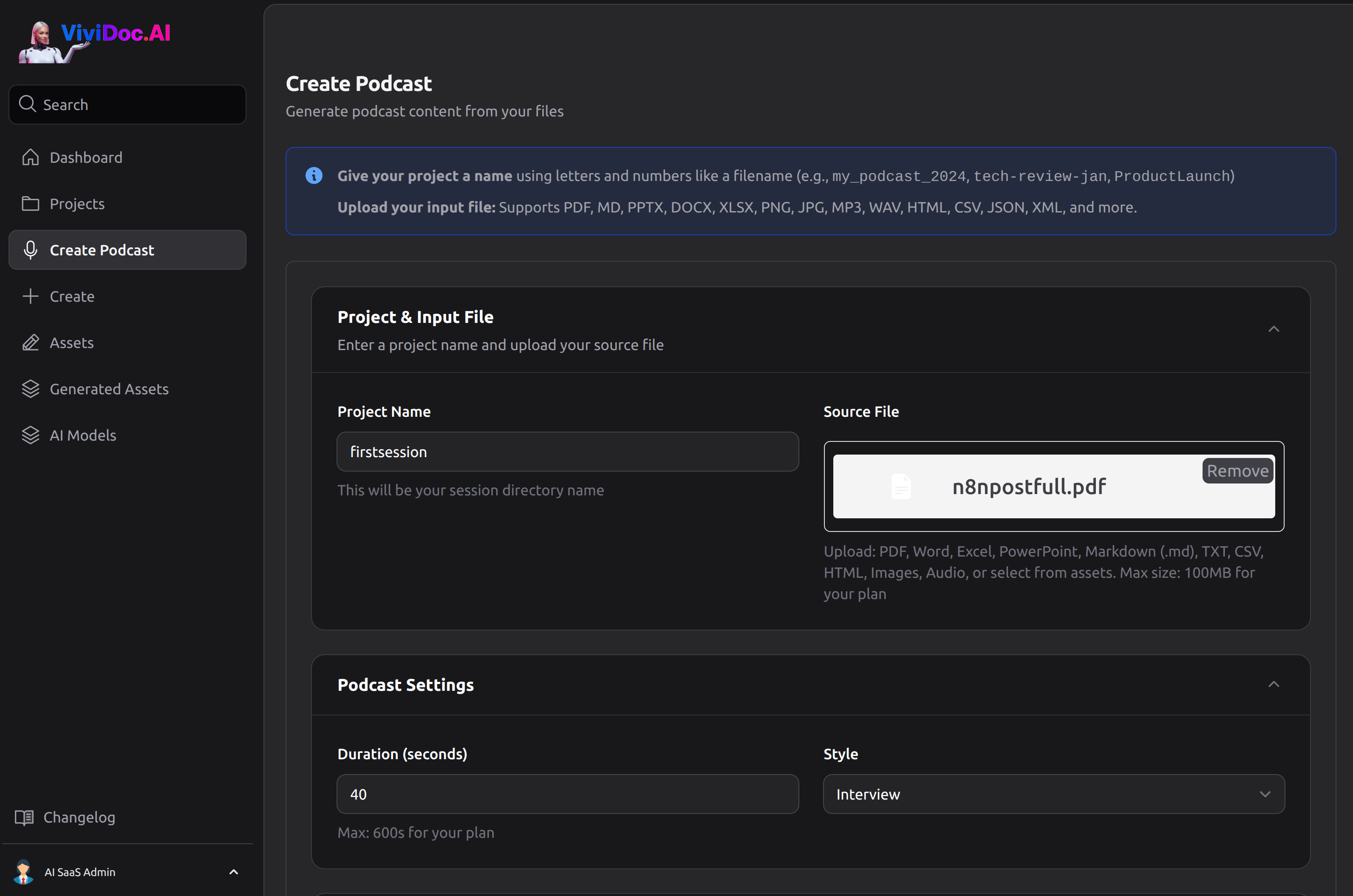
1. Project Creation
When you first log in, and start to create a podcast you'll see the main form where you can title your project and upload your input document. You can also set the length of the video desired, and the type Monologue or Interview.
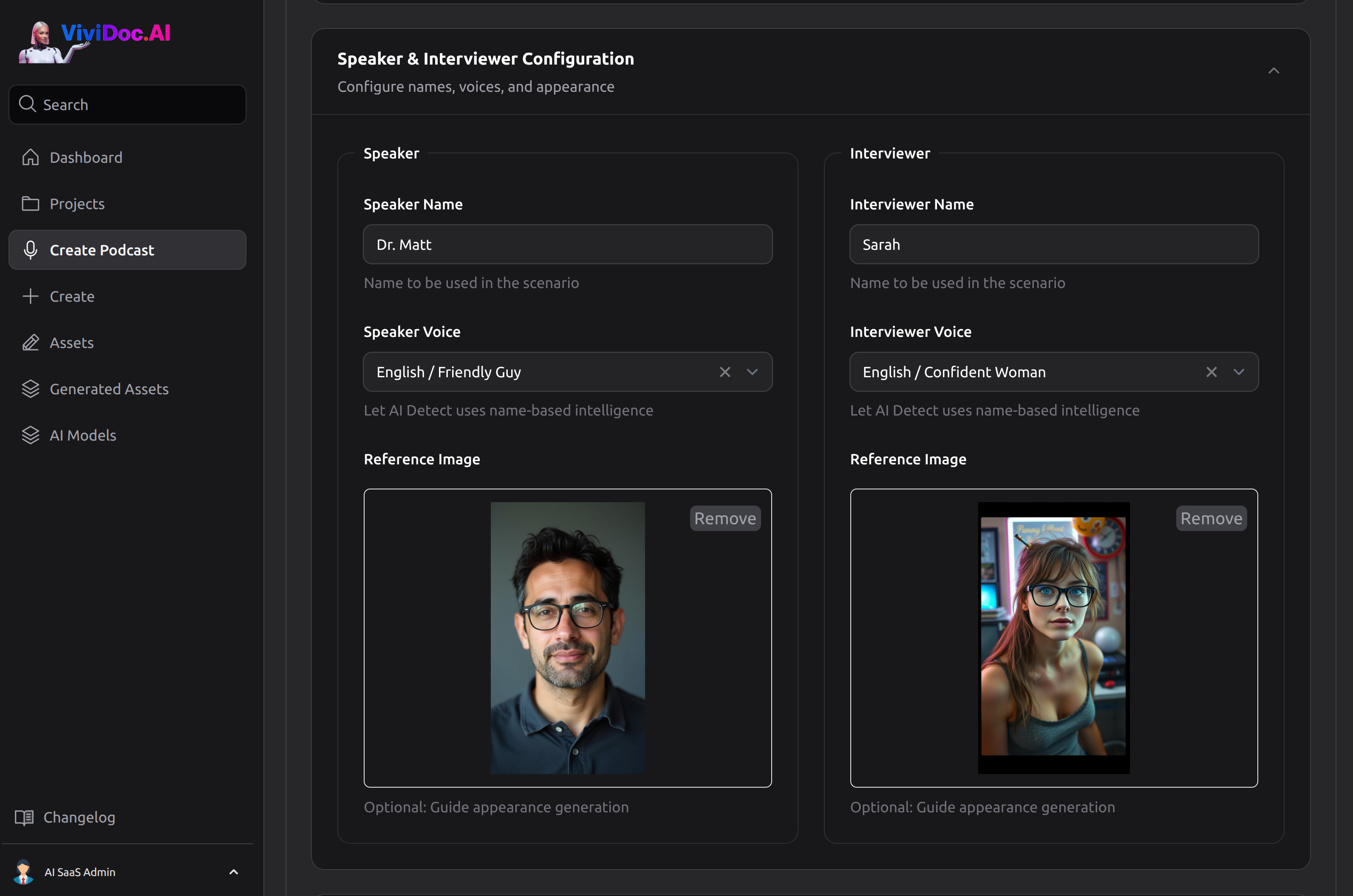
2. Speaker and Interviewer configuration
Here your give your speaker and interviewer (if creating an interview) a name. These may be used in the created scripts. You can also pick a voice for them or Let AI decide the voice for you. This is also where you may upload a reference image for your custom speaker and interviewer. The video created will be with their faces!
3. Media Settings and Podcast Scenario creation
Decide the aspect ratio you like for your end video and Click "Create Podcast". You will initially see the full script AI created for your video. There is a blue button after it that reads "Save Edited Lines". Here you can change any part of the script to your exact liking and click that button to save. At this point the images for the speaker/interviewer are not yet created neither is the audio of the spoken text. Click the Generate Audio & Visuals button and you will promptly see the images created and can hear the audio of the speech for your review (see screenshot below).
Once audio & visuals are generated by the AI you can still press Regenerate Edited Lines to recreate the audio if you like.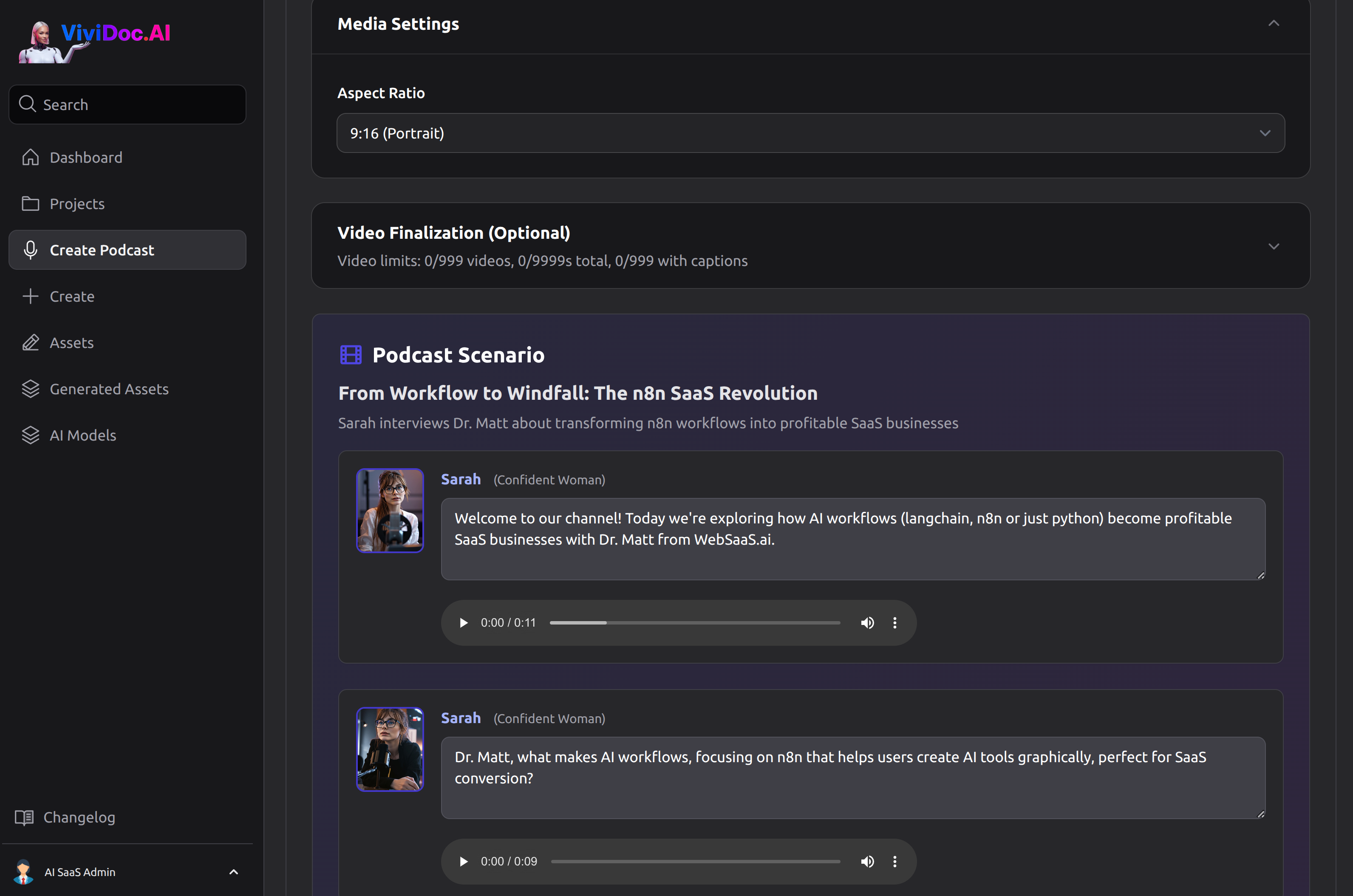
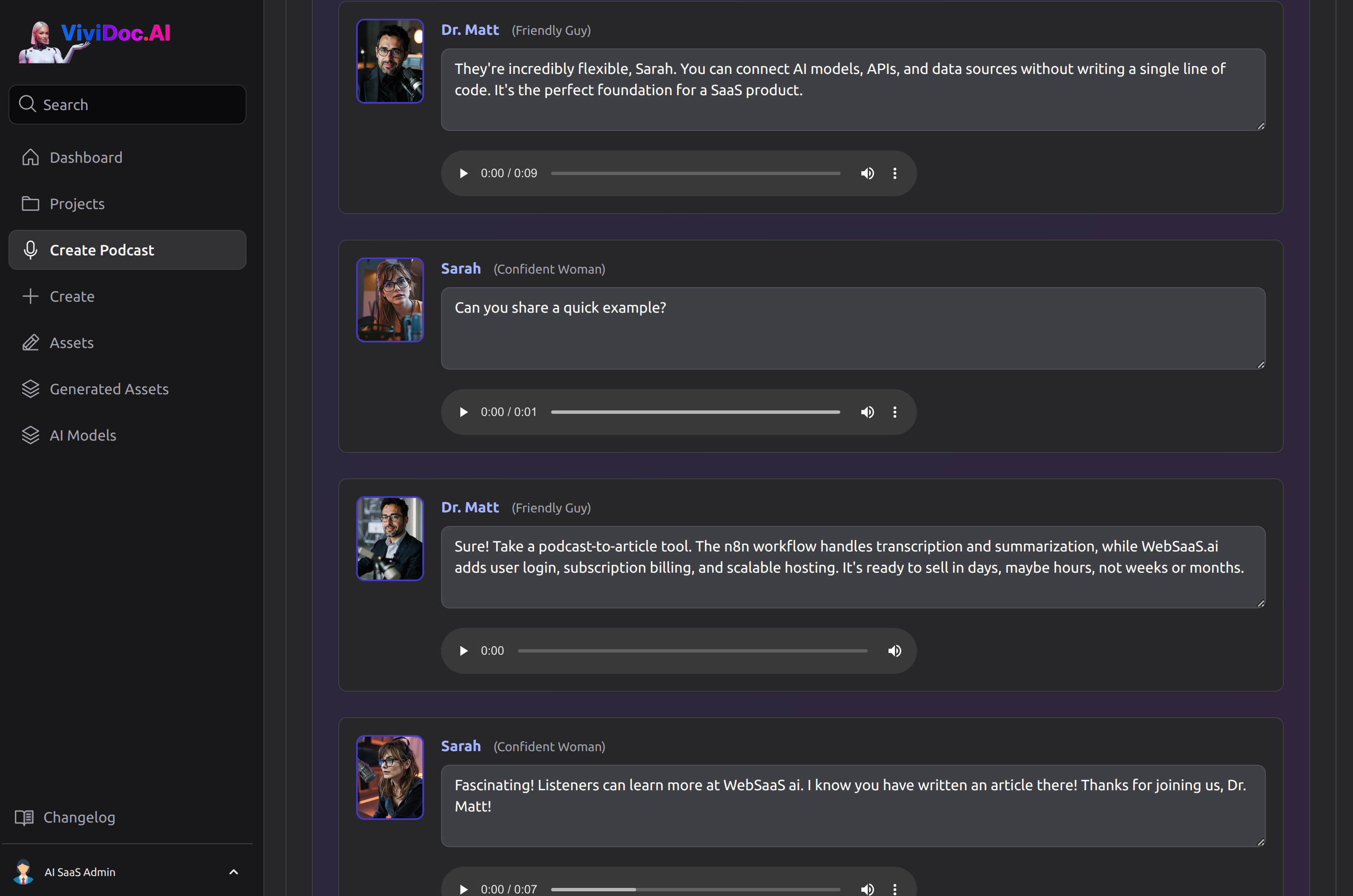
4. Podcast scenario, Audio & Visuals
Scroll down to see all the text, audio and visuals created. The button underneath will read "Generate Final Video" and an "Add Captions" option. As you may have guessed just press the button to get the final video.
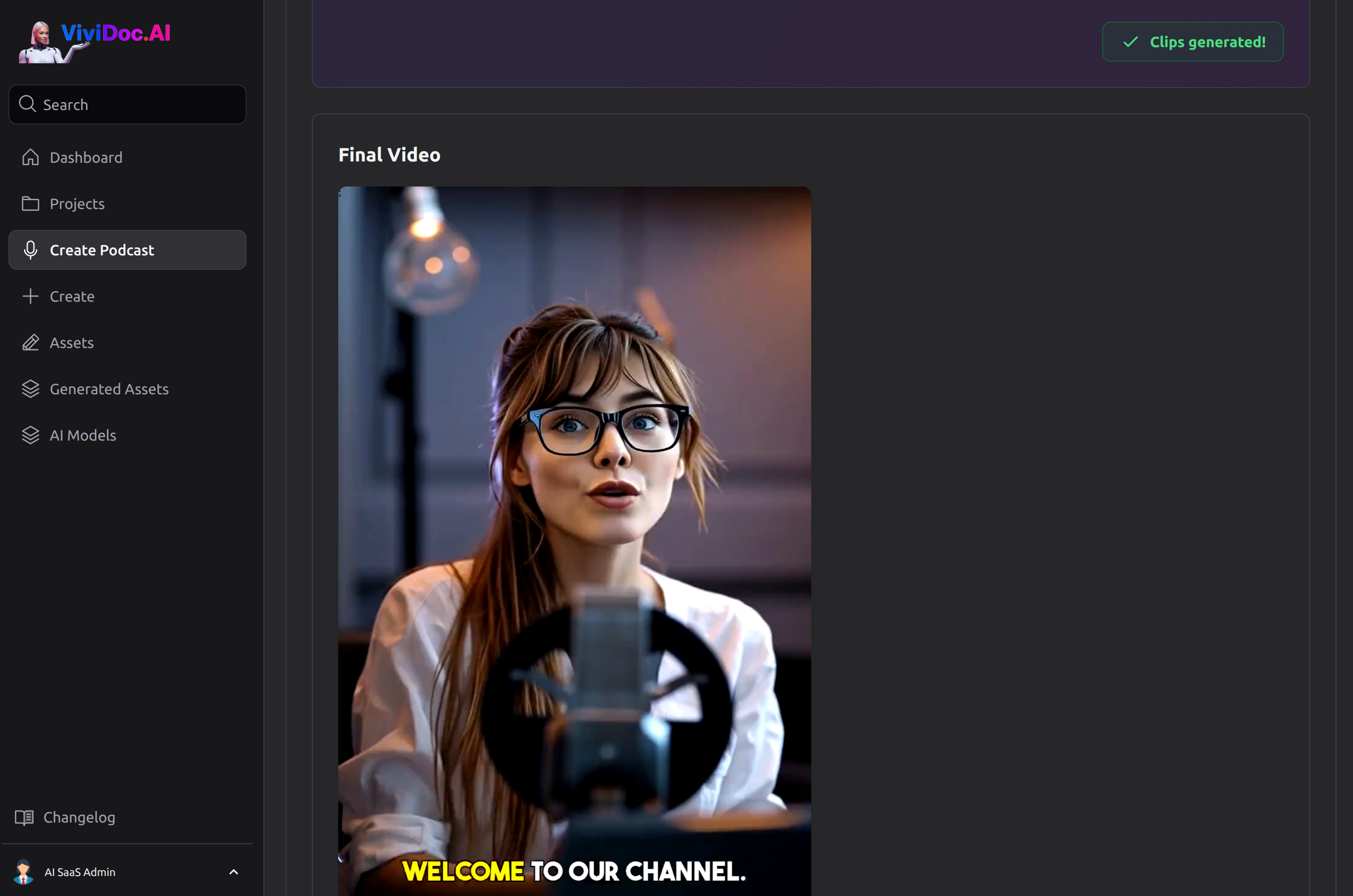
5. Final Video and Final Video with Captions
Watch as AI transforms your content into an engaging video with narration and visuals.
A service log shows always exactly what the AI GPUs are doing for your project.
If you have not added captions you can still do so (after seeing the final video) by clicking "Finalize with Captions".
6. Results & Download
Once your video is complete, preview it and download for use across your platforms.
Your project will remain on your account for reviewing from the "Projects" page.
All the video clips, audio clips and images along with the final video and final video with captions will be stored in your "Generated Assets"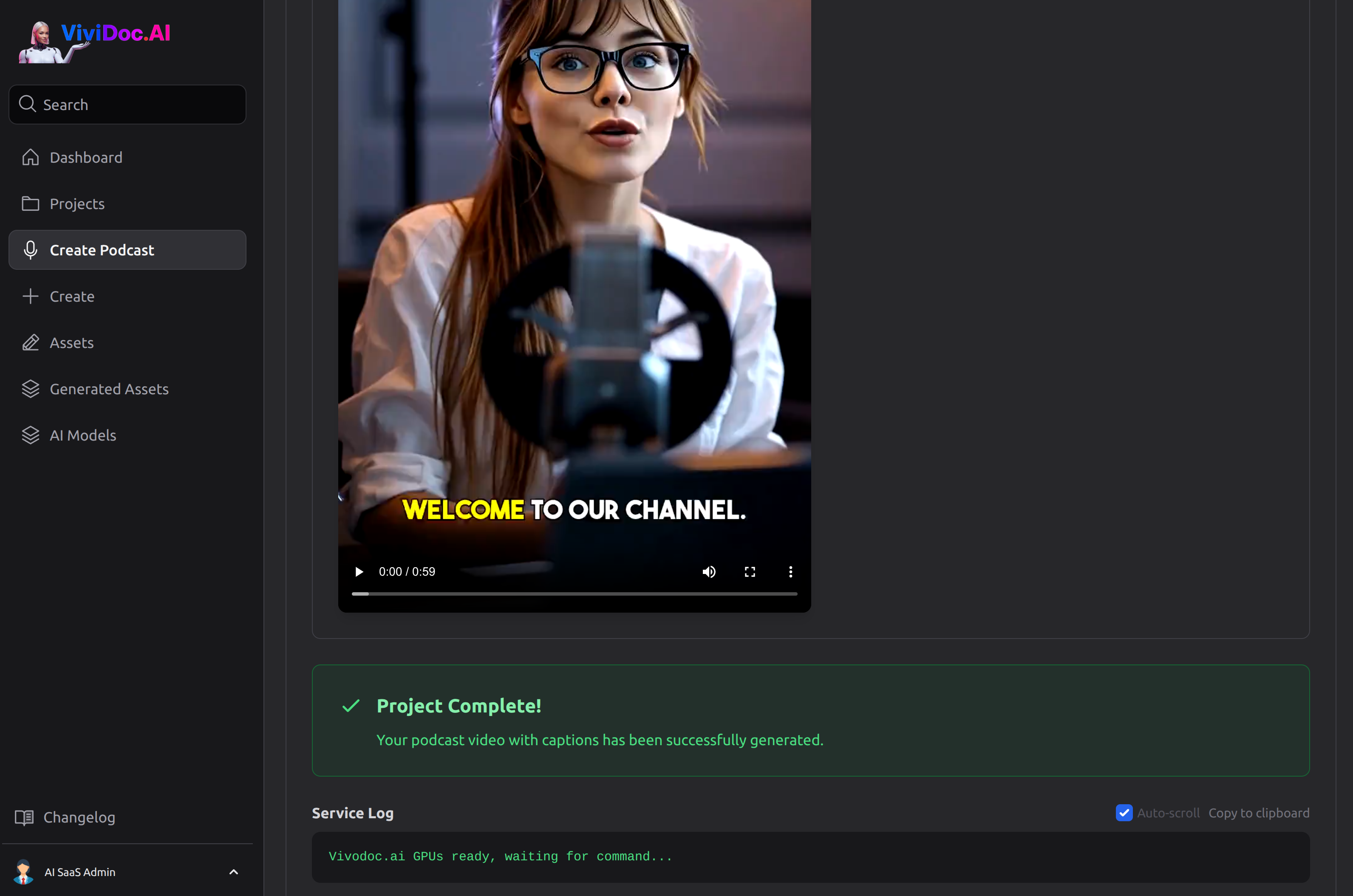
Ready to create your first video? Sign up to see our AI in action for your own videos!
If you have any questions, our support team is here to help!